Overview
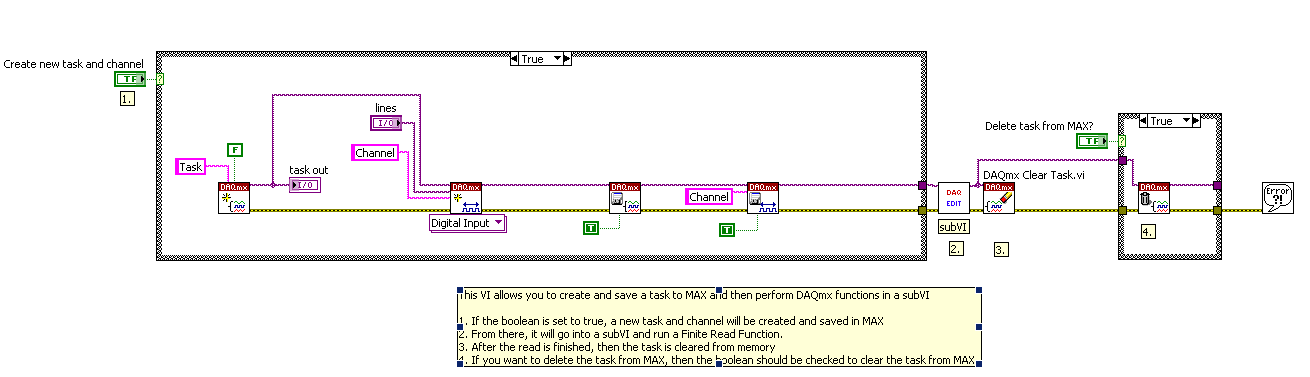
This VI creates and saves a task to MAX and then reads from that task in a subVI.
Description
This VI allows you to create and save a task to MAX and then perform DAQmx functions in a subVI.
Requirements
Software
- LabVIEW 2012 or compatible
- NI-DAQmx 9.5.5 or compatible
Hardware
- NI Multifunction DAQ Device
Steps to Implement or Execute Code
-
First, go into the block diagram of the main VI and change the new task name for the DAQmx Create Task to what you want the task to be named. Do the same for the DAQmx Create Virtual Channel.
-
The first time you run this program, change the boolean to create new task or channel to true. This will create your task and channel and save them to MAX. Once they are created the first time, change the boolean to false.
-
Before running again, make sure that the false case I/O constant in the main VI is set to your created task.
-
Also before running again, open up the sub VI and in the task/channels in, choose the task that you would like to reference.
-
From here, you should be able to run the main VI as many times as you would like. You will also be able to run the subVI by itself without the main VI running.
-
If you would like to erase your task from MAX before you close out the program, change the boolean for Delete Task from MAX? to true and run the VI.
Additional Information or References
Main VI:
![]()
SubVI:

**This document has been updated to meet the current required format for the NI Code Exchange.**


