Functional Description
This Community post is to support KnowledgeBase 4SA8N6CX: How to Create Child LabVIEW Libraries (lvlib) Using Distributed System Manager (DSM) and LabVIEW Dat.... Please refer to this article for more information on modifications being made.
In the project explorer if you create a library to store shared variables this can be done both manually and programmatically, by using the DSC Module. You can also create a variable for this library manually or programmatically, once again using the DSC Module. For some applications it is desirable to have the shared variable structure, in the project explorer or in the Distributed System Manager (DSM) to reflect the real world system architecture.
For example, if you have several power stations, with several generators, which then have parameters your acquiring/monitoring. To create this manually it is more of the same, just right-click on the library (parent library) and create new library.
However, programmatically this is rather more challenging. This is because this architecture is not maintained in the Shared Variable Engine, a process is just a process. However, it is possible to workaround this limitation. This is done by editing the xlm file which has the Operating System will name LabVIEW Library file (lvlib). You can view the xml data by selecting to open the file with Wordpad or Notepad.
Note: It is not recommenced to edit xlm data and this is unsupported.
These files, both the parent and child (sub) libraries require a few alterations in the correct order.
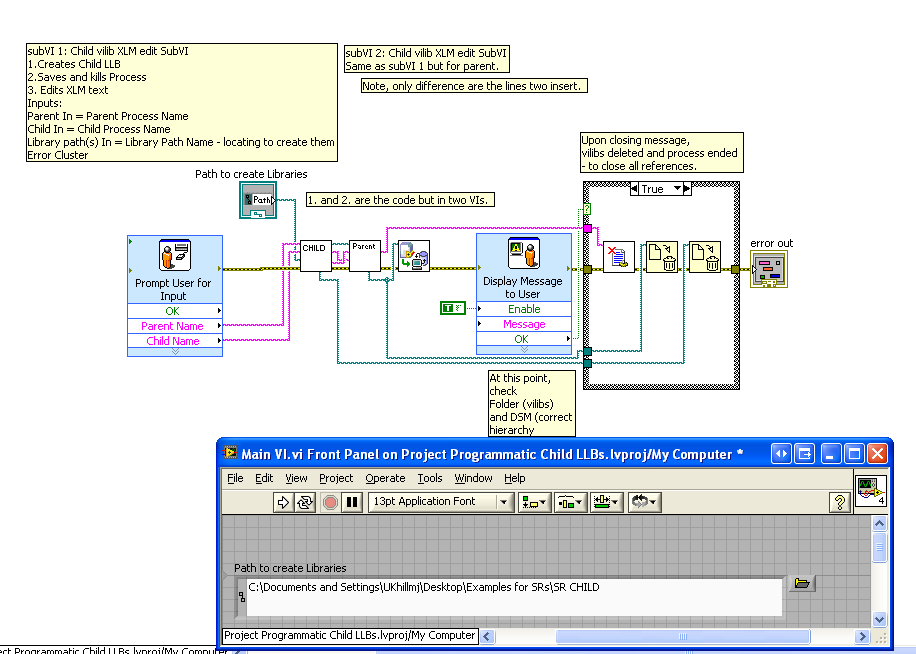
- Firstly, the child library must be created before the parent library as the child library must exist upon creation of the parent library. To create a library programmatically this is done using the DSC Create Process VI, Saved using the Process to Library VI and finally the process is deleted using the Delete Process VI. Note: When the process is deleted it is removed from the Shared Variable Engine but the file still exists on the PC. The process is removed because the xlm data can not be altered while the library (process) is deployed.
- Then the two lines which must be parsed within the xlm file for the cild library are added. For more information on the xlm data required please refer to KnowledgeBase 4SA8N6CX: How to Create Child LabVIEW Libraries (lvlib) Using Distributed System Manager (DSM) and LabVIEW Dat....
- Then the Parent Library is created, deployment and deleted. The file is then parsed to include the child library information.
- The main code then deploys both libraries. At this point if you check the process structure in the Distributed System Manager. A pop-up will appear, and once you select ok the libraries/processes are removed.

Notes: Notice Parent & Child, with a variable status. To the right is the pop-up that is generated. Once ok is selected the libraries/processes are removed.
Caveats and Additional Notes
Example code attached is in LabVIEW 8.6.
Within zip file contains LabVIEW Project and the required subVIs.