Description:
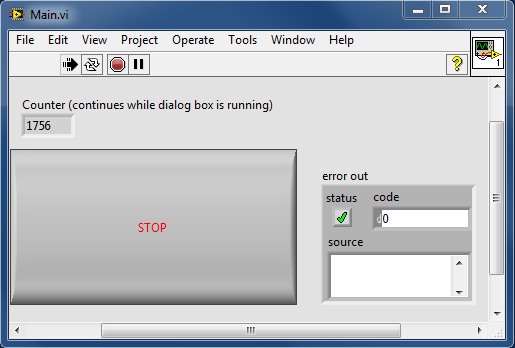
Similar to NateBraska's Custom Dialog Box example, this one allows the user to create custom dialog box from a LabVIEW Front Panel. This one is a simplified version that demonstrates a quick use case of the Start Asynchronous Call function in LabVIEW. Notice that the Main VI continues running unhindered while the Dialog Box SubVI is called, runs, and waits.
Instructions:
- Open the Main VI.
- Run the Main VI.
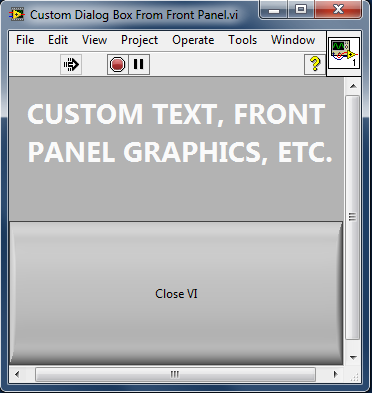
- The "Custom Dialog Box From Front Panel" SubVI will pop up, displaying a custom message created from a LabVIEW Front Panel.
- The Main VI continues to run (the counter increments) while the SubVI runs and is closed.
- Note that you can use VI properties to customize the SubVI to limit the user's capabilities (resizing, etc.)
Ryan C.
Applications Engineer
National Instruments

